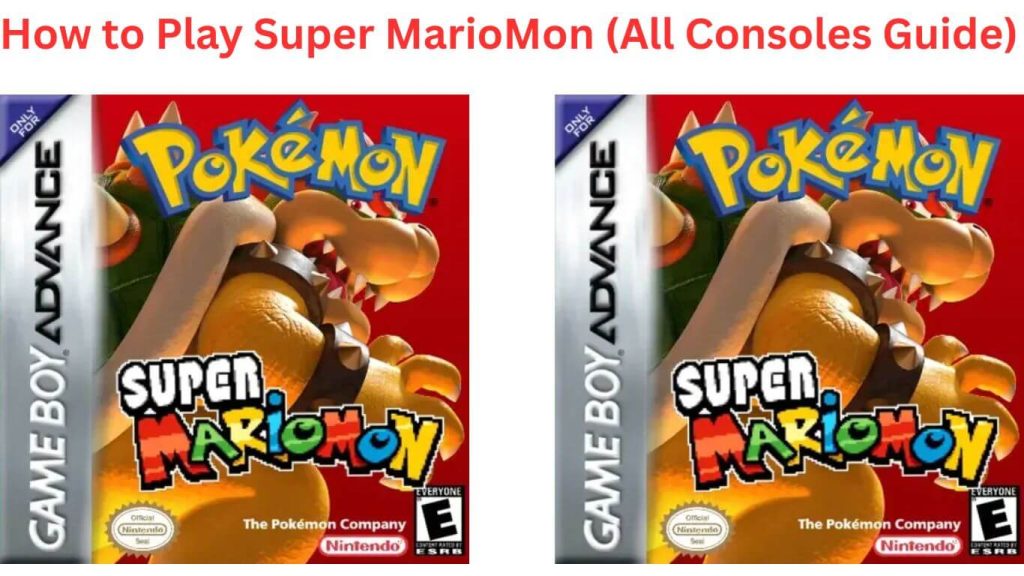
This post Contains the complete guide on how you can play the latest ROM hack of Super Mariomon on Android, Windows, GBA, Linux, iPhone, Mac, Ps vita, Steam Deck, Nintendo Switch etc.
1. Android (Mobile Devices)
Step 1: Install a GBA Emulator
- Go to the Google Play Store.
- Search for a GBA emulator like My Boy! or GBA.emu.
- Install the app by tapping on Install.
Step 2: Transfer the Super Mariomon ROM
- Download the Super Mariomon ROM from Download.
- Save the ROM to a folder on your phone (e.g.,
DownloadsorGBA ROMs).
Step 3: Load the ROM in the Emulator
- Open the GBA emulator (e.g., My Boy!).
- Tap Load Game or browse for the ROM location.
- Select the Super Mariomon ROM to start the game.
Step 4: Play the Game
- Enjoy the game with on-screen controls or customize the controls as per your preference!
2. Windows (PC)
Step 1: Install a GBA Emulator
- Download VisualBoyAdvance-M (VBA-M) from the official website.
- Run the installer and follow the installation steps.
Step 2: Transfer the Super Mariomon ROM
- Download the Super Mariomon ROM and place it in a folder (e.g.,
C:\Games\GBA\).
Step 3: Open the ROM in the Emulator
- Launch VBA-M.
- Go to File > Open and navigate to the ROM folder.
- Select the Super Mariomon ROM to play.
Step 4: Start Playing
- The ROM will load, and you can start enjoying the game.
3. Mac (macOS)
Step 1: Install a GBA Emulator
- Download OpenEmu from the official website.
- Install OpenEmu by dragging it to the Applications folder.
Step 2: Transfer the Super Mariomon ROM
- Download the Super Mariomon ROM.
- Drag the ROM into the OpenEmu library under the GBA section.
Step 3: Open the Game
- Open OpenEmu.
- Select Super Mariomon ROM from the library and click play.
Step 4: Enjoy the Game
- Customize controls if needed and start playing.
4. iPhone (iOS)
Step 1: Install a GBA Emulator (via AltStore or Cydia Impactor)
- Install AltStore on your iPhone (or use Cydia Impactor if jailbroken).
- Download a GBA emulator like GBA4iOS or Delta Emulator from trusted sources.
Step 2: Transfer the Super Mariomon ROM
- Download the Super Mariomon ROM.
- Use iTunes or cloud storage to transfer the ROM to your iPhone.
Step 3: Open the Emulator
- Open the installed emulator on your iPhone.
- Load the Super Mariomon ROM through the emulator’s file manager.
Step 4: Start Playing
- Customize controls and enjoy the game!
5. Linux (Ubuntu, Debian, Fedora)
Step 1: Install a GBA Emulator
- Open the terminal and install mGBA using the following command: bashCopyEdit
sudo apt install mgba - Alternatively, you can install VisualBoyAdvance through your package manager.
Step 2: Transfer the Super Mariomon ROM
- Download the Super Mariomon ROM and save it in a folder (e.g.,
~/Games/GBA/).
Step 3: Launch the Emulator
- Open mGBA or VBA.
- Go to File > Open and select the Super Mariomon ROM.
Step 4: Play the Game
- The game should load, and you can start playing right away.
6. Nintendo 3DS (Handheld Console)
Step 1: Set Up Homebrew on Your 3DS
- Follow the guide at 3ds.hacks.guide to install Luma3DS (custom firmware).
- Install TWiLight Menu++, which includes GBA support.
Step 2: Install a GBA Emulator
- Download GBA.sav or TWiLight Menu++ from the homebrew store or online.
- Install it via FBI or DevMenu.
Step 3: Transfer the ROM
- Copy the Super Mariomon ROM to your 3DS’s SD card.
- Place it in the appropriate folder (e.g.,
3ds/roms/gba/).
Step 4: Play the Game
- Open TWiLight Menu++ and select the Super Mariomon ROM.
- Start playing!
7. Nintendo Switch (Homebrew Console)
Step 1: Set Up Homebrew on Your Switch
- Install Custom Firmware on your Nintendo Switch. Follow guides on switch.homebrew.guide.
- Download RetroArch via Homebrew to set up emulators.
Step 2: Install a GBA Emulator
- Open RetroArch and install the mGBA core.
Step 3: Transfer the ROM
- Download the Super Mariomon ROM and transfer it to the SD card under the folder
RetroArch/roms/gba/.
Step 4: Launch RetroArch
- Open RetroArch and select mGBA.
- Load the Super Mariomon ROM and play.
8. Wii (Homebrew Console)
Step 1: Set Up Homebrew on the Wii
- Install Homebrew Channel using the LetterBomb method.
- Install the Emulator such as VBA GX.
Step 2: Install the Emulator
- Download VBA GX and place it on the SD card.
- Open Homebrew Channel, then launch VBA GX.
Step 3: Transfer the ROM
- Download the Super Mariomon ROM and save it in a folder on the SD card (e.g.,
apps/vba/roms/).
Step 4: Play the Game
- Open VBA GX, select the ROM, and enjoy the game.
9. PlayStation Vita (PS Vita)
Step 1: Set Up Custom Firmware
- Install HENkaku (Custom Firmware) following guides online.
- Install the RetroArch emulator from the VitaDB store.
Step 2: Install the Emulator
- Open VitaShell and install RetroArch.
- Use VitaShell to place the Super Mariomon ROM on your PS Vita.
Step 3: Play the Game
- Open RetroArch on the PS Vita.
- Load the Super Mariomon ROM through the emulator’s interface.
10. Steam Deck (Handheld Console)
Step 1: Install EmuDeck
- Download EmuDeck and install it on your Steam Deck.
- Follow the installation prompts to set up RetroArch or another emulator.
Step 2: Transfer the ROM
- Download the Super Mariomon ROM and transfer it to your Steam Deck.
- Place it in the appropriate directory (e.g.,
EmuDeck > ROMs > GBA/).
Step 3: Launch the Emulator
- Open RetroArch from the Steam Deck interface.
- Browse to the Super Mariomon ROM and play.
GBA (Game Boy Advance)
Step 1: Prepare the Flashcart
- Purchase a Compatible Flashcart:
- Buy a GBA flashcart like EZ-Flash Omega or EverDrive GBA from an online retailer.
- These flashcarts are specifically designed for playing ROMs on the GBA console.
- Insert the MicroSD Card into the Flashcart:
- If you have a flashcart that uses a MicroSD card, insert the card into the flashcart.
- Format the MicroSD card if it’s not already formatted (use FAT32 file system).
Step 2: Transfer the Super Mariomon ROM to the MicroSD Card
- Download the Super Mariomon ROM:
- Ensure that the Super Mariomon ROM is saved on your computer.
- Copy the ROM to the MicroSD Card:
- Connect the MicroSD card to your computer using a card reader or USB adapter.
- Open the MicroSD card folder and create a new folder named GBA (or any name you prefer).
- Copy the Super Mariomon ROM file (usually a
.gbafile) into this folder.
Step 3: Insert the Flashcart into the GBA Console
- Place the Flashcart into the GBA:
- Insert the flashcart with the MicroSD card into the Game Boy Advance’s cartridge slot, just like a regular game cartridge.
Step 4: Boot the Game on the GBA
- Power On the GBA Console:
- Turn on your Game Boy Advance.
- If using a flashcart like EZ-Flash Omega, you should be taken to a menu showing the list of ROMs available on the MicroSD card.
- Navigate to the Super Mariomon ROM:
- Use the controls to browse through the list of ROMs on the flashcart.
- Select the Super Mariomon ROM to start the game.
Step 5: Start Playing
- The game will load just like a regular GBA game, and you can begin playing Super Mariomon directly on your GBA console.
11. Other Gaming Consoles
- Xbox: Use RetroArch or a similar emulator to play GBA games.
- PSP: Install RetroArch or Custom Firmware to run GBA emulators.
- Ouya: Install RetroArch or MAME and load the GBA ROM.
- Android TV: Use My Boy! or GBA.emu to play the ROM.